
Ezytime - Two Factor Authentication
In order to enhance security, you can enable Two Factor Authentication (2FA) for your account. Some Employer IT Policy may require you to do this.
Once enabled you will be prompted for an additional code in order to Login to Ezytime.
To Enable 2FA, login to Ezytime with your Employee Code and on the top right corner, click on your Initials, then Edit Profile.

This will open up your Profile (may be a good time to update your Address, Emergency Contacts etc).
Click Enable Two Factor Authentication
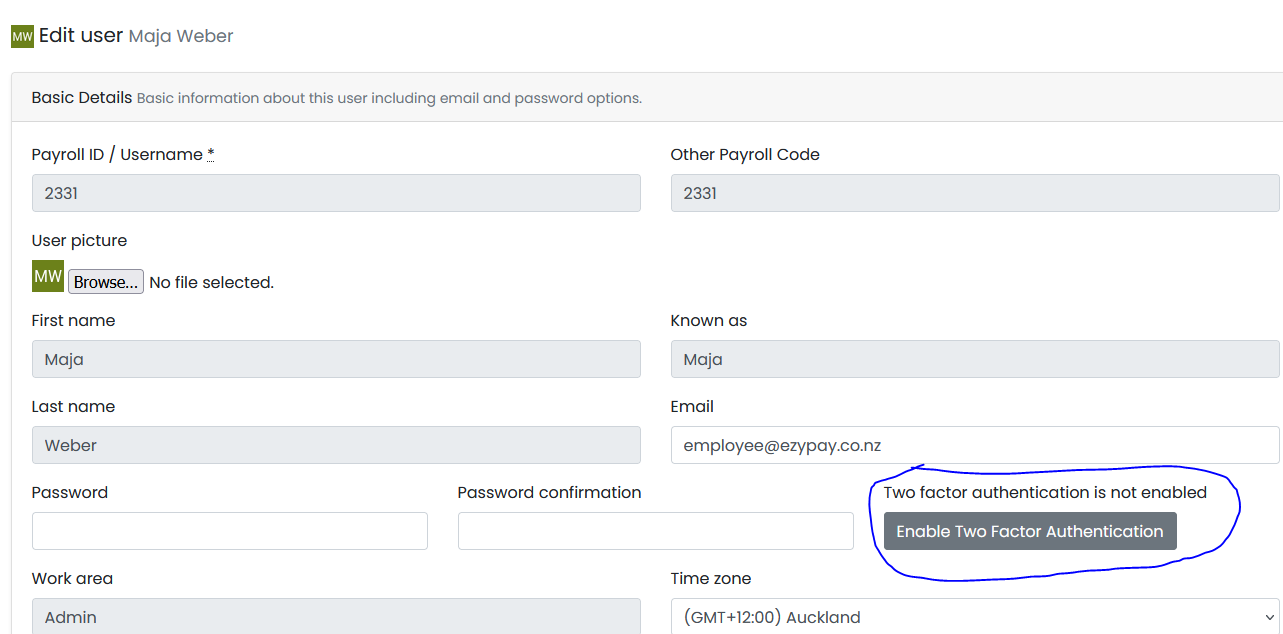
You will then be prompted with this screen.
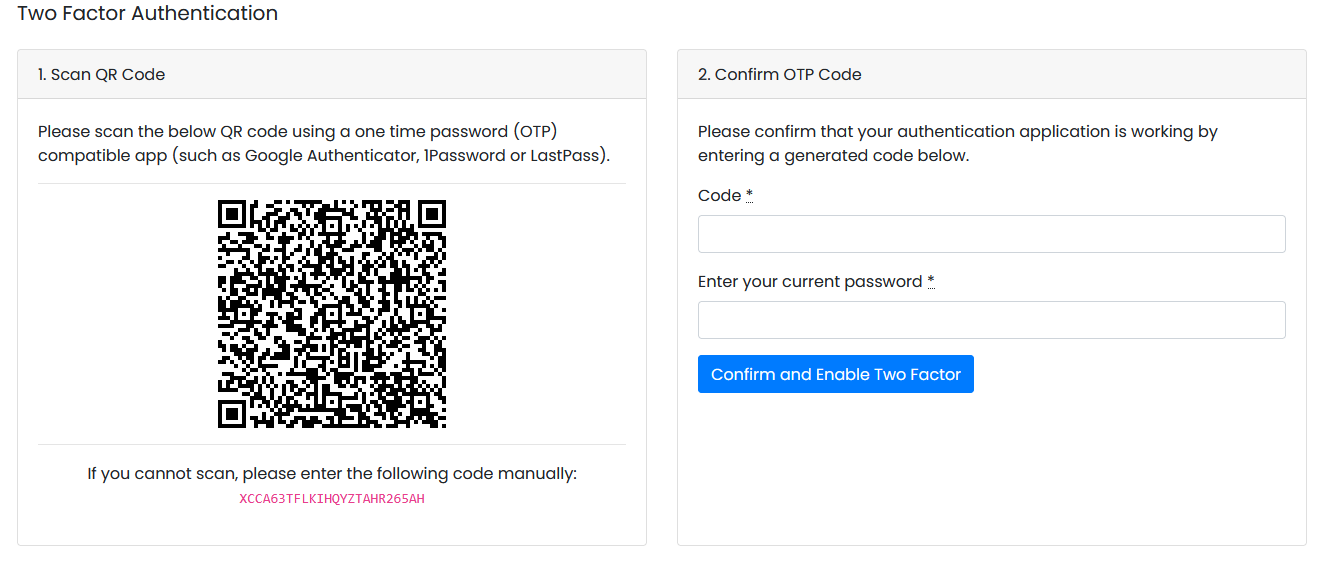
At this stage you can either scan the QR Code with your phone and it should prompt you to add Ezytime to your installed Authenticator (download one of the options listed above if you don't already have one), this will be the easiest way to get a 2F code each time, or you can add the long red code manually to your Authenticator.
Once you have a code, enter it into the CODE field on the right hand side. Confirm with your Password and click on Confirm and Enable Two Factor.
The below screen will then pop up with a list of Backup Codes. You should copy and save these codes in a safe place so that you can login to Ezytime should you lose use your phone.
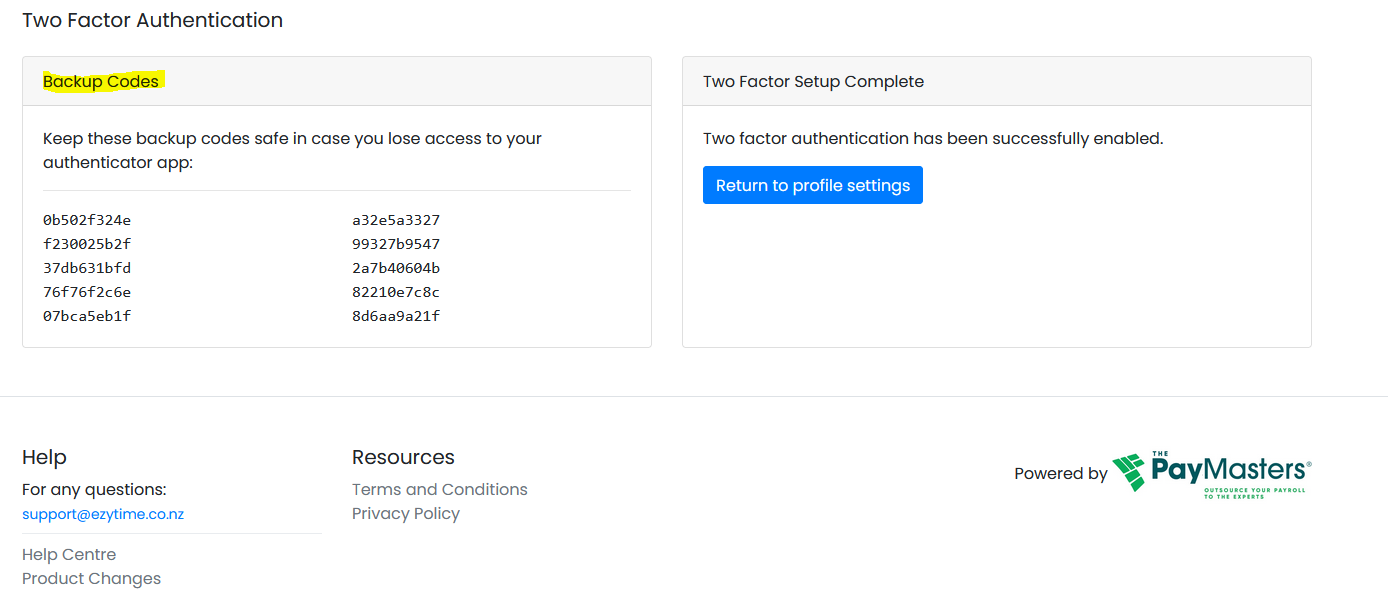
Once saved, click on Return to Profile Settings.
You can Disable Two Factor Authentication at any time by returning to your Profile page.